
Blog
November 7, 2026
How to Delete Duplicate Photos on iPhone (2 Ways)
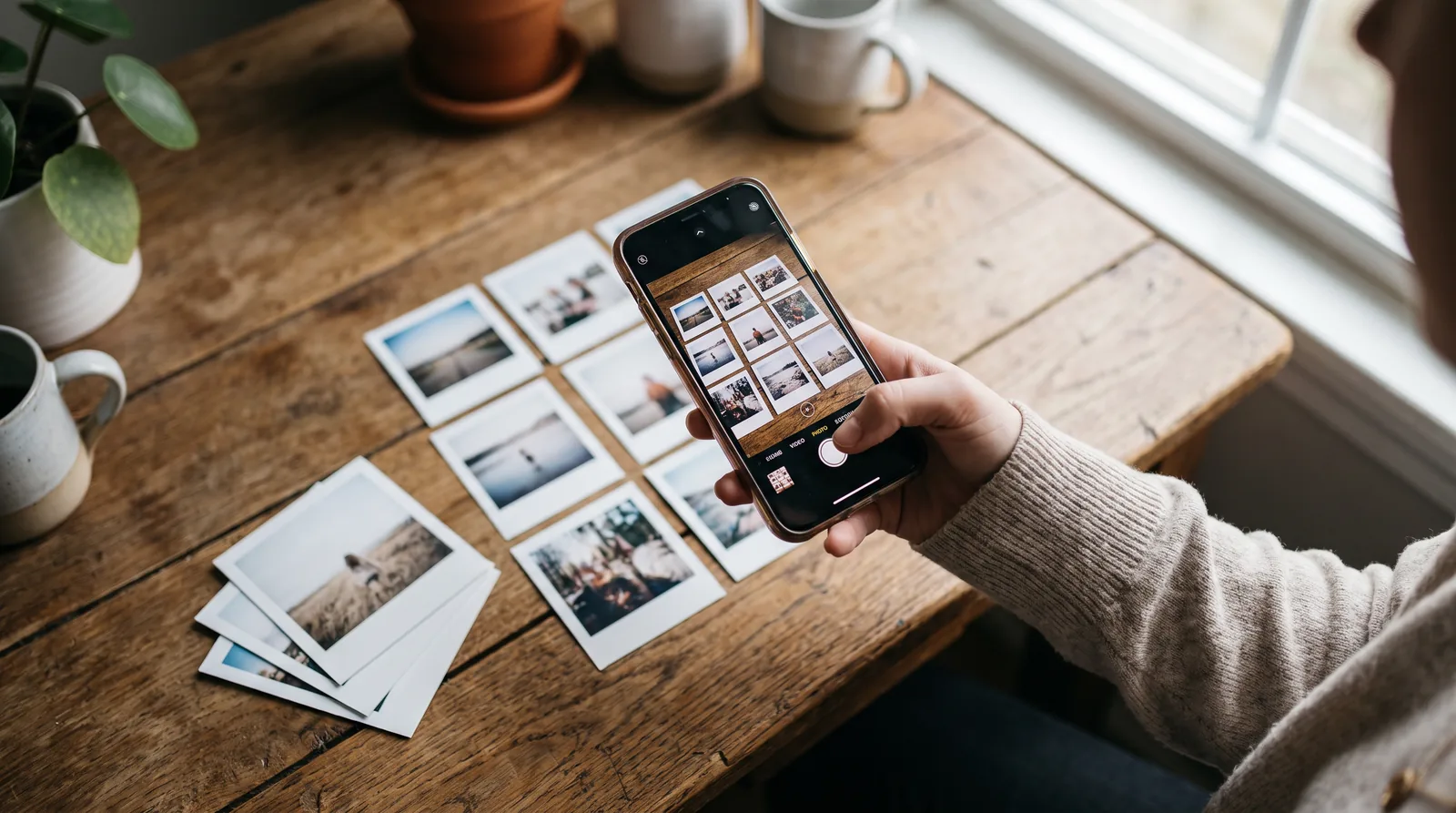
To delete duplicate photos on iPhone, open the Photos app, tap Collections (on iOS 18, just scroll down), go to Utilities, tap Duplicates, and tap Merge on each set. This works on iOS 16 and later. It handles exact and near-exact copies. It does not touch burst shots, retakes, blurry photos or screenshots, and those usually take up more space than true duplicates. This guide covers both parts: the built-in method first, then how to clear what it leaves behind.
Can you delete duplicate photos on iPhone?
Yes. Since iOS 16, the Photos app has a built-in Duplicates album that finds copies of the same photo or video and lets you merge them. If you are on iOS 15 or earlier, you do not have that album. You can update your iPhone, or go through your library by hand or with an app.
There are two kinds of clutter, and it helps to keep them apart:
- True duplicates. The same photo saved more than once. You imported it twice, saved it again from a chat, or downloaded it again from a link.
- Near-duplicates and junk. Bursts, five takes of the same moment, a shot that came out blurry, a screenshot you no longer need. These are different files, so they are not duplicates in the strict sense, but they fill your phone just the same.
The Photos app deals with the first kind. For the second kind you need another approach, which comes later in this guide.
How to delete duplicate photos on iPhone with the Photos app
Here are the exact steps. You need iOS 16 or later. To check, open Settings, tap General, then About, and read the iOS version.
- Open the Photos app.
- Tap Collections at the bottom. On iOS 18, scroll down below the library instead; on iOS 16 and 17, tap Albums.
- Scroll down to the Utilities section and tap Duplicates.
- Each row shows a set of matching photos or videos. To merge one set, tap Merge next to it.
- To merge several at once, tap Select in the top right, tap the sets you want (or choose Select All), then tap Merge at the bottom.
- Confirm when the prompt asks you to merge the copies.
When you merge, Photos keeps the best-quality version and combines the details attached to the copies, such as favorites and captions. The extra copies are moved to Recently Deleted, not erased on the spot.
Check a set before you merge it
Tap a set to look at it first. You can see which copy will be kept and compare the others. If a set looks wrong, skip it. Photos has no way to tell you that two photos you care about are actually different moments, so a quick look at the first few sets is worth the time.
Empty Recently Deleted to get the space back
Merging does not free storage right away. The removed copies sit in Recently Deleted for 30 days. To get the space back now:
- In Collections, under Utilities, tap Recently Deleted. You may need to unlock it with Face ID, Touch ID or your passcode.
- Tap Select, then Delete All, and confirm.
Look through the album first. Anything in there is permanently gone once you empty it.
If the Duplicates album is empty or looks incomplete
- Give it time. After an update or after a big import, your iPhone analyzes the library in the background. Leaving it charging and connected to Wi-Fi gives it the best chance to finish.
- Check your iOS version. No Duplicates album exists before iOS 16.
- Remember the limit. The album only lists photos Apple treats as copies. Similar shots are not copies.
A note on iCloud Photos
If you use iCloud Photos, your library is shared across your devices. Merging or deleting on your iPhone removes those copies on your other devices too. That is usually what you want, but it means Recently Deleted on all devices is your only safety net.
What the Duplicates album misses
This is where most people are surprised. After merging every set, the library often looks nearly the same size. The reason is that the biggest space users are rarely exact duplicates.
| Type of clutter | Found by the Duplicates album? | Why it matters |
|---|---|---|
| Same photo saved twice | Usually yes | Easy win, but often a small share of your library |
| Bursts and retakes of one moment | No | Dozens of near-identical frames |
| Blurry or too-dark photos | No | Nobody will ever look at them |
| Screenshots and screen recordings | No | Pile up for years |
| Photos saved from chats and social media | Only if they match exactly | Re-saved or recompressed versions can slip through |
| Large videos | No | A few clips can take more space than thousands of photos |
The album also cannot tell you whether a photo is backed up. If you delete something that exists nowhere else, Recently Deleted is the only thing standing between you and losing it.
Clean up bursts and screenshots by hand
You can clear some of the rest without any extra app. It takes longer, but it works.
Bursts
- In Collections, scroll to Media Types and tap Bursts.
- Open a burst and tap Select.
- Tap the frames you want to keep, then tap Done.
- Choose to keep only the frames you picked. The rest are removed.
Screenshots
- In Collections, under Media Types, tap Screenshots.
- Tap Select, then drag across a block of thumbnails to select many at once.
- Tap the trash icon and confirm.
Large videos
In Collections, under Media Types, open Videos. The list is sorted by date, not size, so you have to open clips to judge them. That makes it slow to find the real space hogs.
For a broader plan beyond photos, including apps, messages and system data, see iPhone Storage Full? Here's What Actually Works.
How to find and delete duplicate photos on iPhone with PixCarry
PixCarry is built for the part the Photos app leaves undone. Its Duplicates & Junk scan looks through your whole library and shows you how much space you can free up, and where it is. Everything is checked on your phone. Nothing is uploaded to find duplicates.
It sorts the clutter into groups:
- Duplicates: the same photo saved more than once, imported twice, saved again from a chat or downloaded again.
- Similar shots: bursts and retakes of the same moment, with the sharpest one picked to keep.
- Blurry and dark photos: out of focus, too dark to make out, or a shot of the inside of a pocket.
- Screenshots, screen recordings and pictures saved from WhatsApp or social media.
- Large videos, biggest first, so you can see where the space really goes.
How it decides which copy to keep
For each group, PixCarry picks the copy to keep for you: your favorite, the one you edited, or the largest. Favorites are never selected for you. You can also swipe through suggestions one by one. Swipe left to delete, swipe right to keep. If a photo is not junk, tell PixCarry and it will not suggest it again.
Steps
- Install PixCarry from the App Store and allow access to your photo library.
- Run the scan and look at the groups and the space estimate.
- Open a group, such as Similar shots, and swipe through the suggestions. Left deletes, right keeps.
- Before you delete, check which photos are already backed up. PixCarry shows this for you.
- Confirm the deletion.
Deleted photos go to Recently Deleted for 30 days, the same safety net as the Photos app, so nothing is lost by accident. After that, they are gone for good. PixCarry also checks new photos in the background while your phone charges, so the clutter does not build up again unnoticed.
Scanning is free. Deleting, automatic transfers and whole-library backups are part of PixCarry Plus. Yearly and monthly plans start with a 7-day free trial, so you can run the full cleanup before deciding.
Using an iPad, Mac or Android phone
PixCarry also runs on iPad, and on Mac it does the same Duplicates & Junk cleanup for your Mac Photos library. There is an app for Mac and an Android version. One difference matters on Android: deletes there are permanent, with no Recently Deleted folder, and there is no edited-copy detection. Back up first and review carefully.
Built-in method vs. PixCarry
| Photos app Duplicates album | PixCarry Duplicates & Junk | |
|---|---|---|
| Exact duplicates | Yes (iOS 16 and later) | Yes |
| Similar shots and bursts | No | Yes, sharpest one picked |
| Blurry and dark photos | No | Yes |
| Screenshots and recordings | No | Yes |
| Large videos, biggest first | No | Yes |
| Shows what is already backed up | No | Yes |
| Deleted items go to Recently Deleted | Yes | Yes, on iPhone and iPad |
| Cost | Free | Free to scan, Plus to delete |
If you only have a handful of exact copies, the Photos app is enough. If your storage is still full after merging, the rest of the library is where to look.
Back up what you keep
Deleting is the easy half. The safer habit is to make sure every photo you keep exists somewhere other than your phone. Phones get lost, dropped and replaced, and Recently Deleted only lasts 30 days.
PixCarry backs up the photos you keep to storage you own. That can be your own S3 or S3-compatible bucket (AWS, Backblaze B2, Wasabi, Cloudflare R2, MinIO and more), SFTP, FTP or WebDAV, a NAS or server, Synology, Nextcloud, ownCloud, Immich or PhotoPrism. There is no account to sign up for and no cloud storage of its own, so your photos go only where you send them.
If you would rather send photos to a computer, PixCarry Desktop is a free companion app for Mac, Windows and Linux. It receives photos from your phone over Wi-Fi, or over the internet through PixCarry's relay when you are not on the same network. You can download PixCarry Desktop from the site. If you want a similar private setup for the files on your Mac, read Sync Mac Files to Your Own Cloud, Privately.
Free up the space after a backup
Once a backup is done, PixCarry lets you choose which originals to remove from your phone and get the space back. Options like date folders, Wi-Fi only transfers, and sending HEIC photos as JPEG for servers and PCs that cannot open them keep the archive tidy and usable. Date, location and camera details are kept.
A simple order to follow
- Update to iOS 16 or later and merge the Duplicates album.
- Run a PixCarry scan for similar shots, blurry photos, screenshots and large videos.
- Check what is already backed up, and back up the rest.
- Delete the clutter and review Recently Deleted.
- Empty Recently Deleted when you are sure, to get the space back.
Doing it in this order means the deletions are reversible until the very last step, and the photos you care about are stored somewhere you control.
Ready to see how much you can clear? Scan your library with PixCarry for free and see the space estimate before you delete anything.
Frequently asked questions
Can you delete duplicate photos on iPhone automatically?
Partly. On iOS 16 and later, the Duplicates album finds copies and you tap Merge to remove the extras, but you still start it yourself. PixCarry checks new photos in the background while your phone charges, and you review the suggestions before anything is deleted.
Where is the Duplicates album on iPhone?
Open Photos, tap Collections (scroll down on iOS 18, or tap Albums on iOS 16 and 17), find Utilities, and tap Duplicates. It only exists on iOS 16 and later, so if you cannot see it, check your version in Settings, General, About.
Does merging duplicate photos delete them permanently?
No. Merging keeps the best copy and moves the others to Recently Deleted, where they stay for 30 days. They are permanently removed when that time ends or when you empty the album yourself.
Why do I still have a full iPhone after deleting duplicates?
Exact duplicates are usually a small part of a library. Bursts, similar shots, blurry photos, screenshots and large videos often take more space. Also, merged copies keep using storage until you empty Recently Deleted.
Is it safe to delete duplicate photos on iPhone?
It is safe if you check what you are removing and keep a backup. Deleted photos stay in Recently Deleted for 30 days on iPhone. If you use iCloud Photos, deleting on one device removes the photo on your others too.