
Blog
August 20, 2026
iPhone Storage Full? Here's What Actually Works
One of the most common problems iPhone owners run into is the "Storage Almost Full" warning showing up out of nowhere. So why does phone storage fill up so fast in the first place? The answer is simple: modern phones generate an enormous amount of data, and most of it happens without you noticing.
Why Storage Fills Up So Fast
- 4K and HDR video: A few minutes of 4K footage can easily eat up several gigabytes.
- Live Photos and Portrait mode: What looks like a single frame actually carries a short video clip and depth data in the background.
- WhatsApp and Telegram media: Hundreds of videos, GIFs, and voice notes from group chats quietly pile up.
- Social app caches: Instagram, TikTok, and X all cache the content you scroll past on-device.
- App data and games: Mobile games in particular can demand a few more gigabytes with every update.
As a result, even a 128 GB iPhone can throw a "Storage Almost Full" error within a few months of heavy use.
Quick Fixes
Before anything else, there are a few practical steps worth trying:
- Clear app caches: Safari's "Clear History and Website Data" alone can free up a noticeable amount of space.
- Delete apps you don't use: Under Settings > General > iPhone Storage, you can easily spot apps you haven't opened in ages. "Offload App" keeps your documents and data, so everything comes back when you reinstall it.
- Turn on iCloud Photos optimization: Under Settings > Photos > iCloud Photos, enabling "Optimize iPhone Storage" keeps only small local copies on-device while originals live in the cloud.
- Clean up WhatsApp media: Clearing out unnecessary videos, voice notes, and documents from chats frees up real space.
- Limit message history: Settings > Messages > Keep Messages > 30 Days or 1 Year automatically deletes old messages.
These steps help in the short term, but you'll likely see the same warning again in a few weeks — because every new photo and video you take keeps taking up space on your phone.
The Permanent Fix: Free Up Space with PixCarry
If you actually want long-term relief, the real move is to get your photos and videos off your phone entirely and onto storage you control. That's exactly where PixCarry comes in.
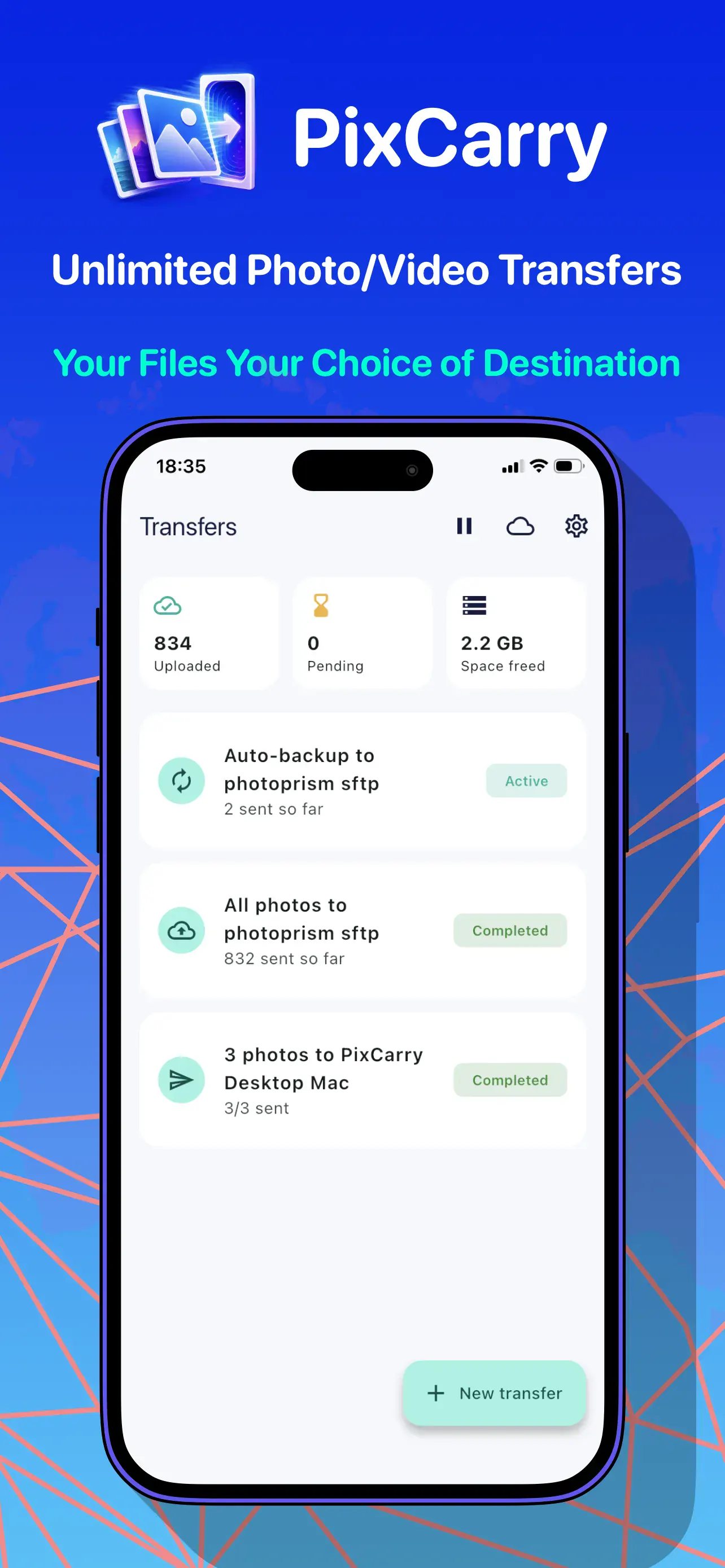
PixCarry automatically sends every new photo and video on your iPhone to your own computer or NAS — S3, SFTP, WebDAV, PhotoPrism, or straight to your Mac, Windows, or Linux machine, your choice. It runs quietly in the background; once files have safely landed at the destination, you can remove the originals from your phone with one tap, while a lightweight preview stays in your camera roll.
- No cloud subscription fees — your files live on your own computer or NAS.
- You stay in control of your backups, with no dependency on third-party servers.
- Your phone stays fast for years, with no more storage warnings to deal with.
- You choose the destination: S3, SFTP, WebDAV, PhotoPrism, or your own computer via PixCarry Desktop.

Setup is simple: install the app on your iPhone, pick a storage destination, and let PixCarry handle the rest. It works fastest while your phone is charging and on Wi-Fi with the screen on.
The Bottom Line
A "Storage Almost Full" warning on iPhone is annoying, but it has a real fix: regularly moving your data off the device. A few quick cleanup steps can buy you some breathing room in the short term — but for lasting freedom, making it a habit to automatically send your photos and videos to your own computer or NAS with PixCarry is the healthiest approach. Your phone stays fast, and your memories stay safely in your own private archive.